


This section provides information about how to use the TaskListView plugin.
Get the PlugIn
You can download the actual version 1.0.1 on the Download site or in your Eclipse IDE through Help ⇒ Software Updates...⇒ Add site "http://todoregister.sourceforge.net/updates/".
Open the View
To open the view go to Window ⇒ Show View ⇒ Other... ⇒ TaskList Category ⇒ TaskListView
If you open the View for the first time, you will be asked about account name and password for Google Account. With valid login data, the plugin can establish a connection with the Google account and the events are loaded and displayed inside the view. In case the login data is not correct, the view will stay empty and you get a message pop-up with according error description.
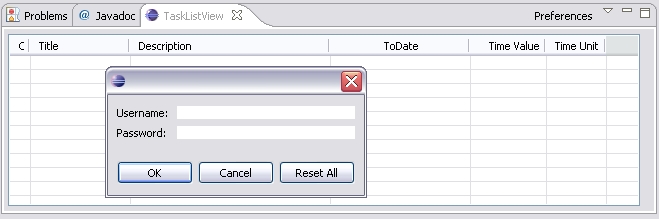
This is how the login data dialog looks like
For test purpose you can insert data of the test account:
user name: "se.praktikum@gmx.de", password: "software"
Edit account data
To set or change the account data use the Button "Preferences" on the tool bar of the View. The Dialog with the stored login data will be shown. If the combination of account name and password is not valid, the connection cannot be established and you get a Pop-up with an error message.
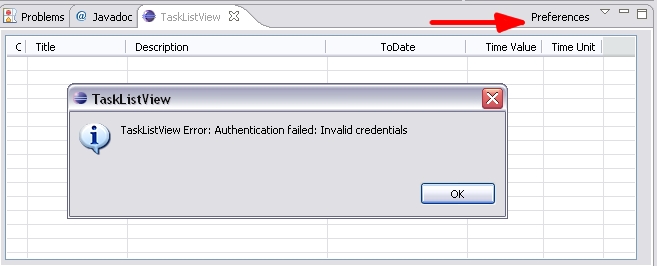
Error message at invalid account data
With correct login data, the list of tasks (if there are already tasks stored) will be displayed.
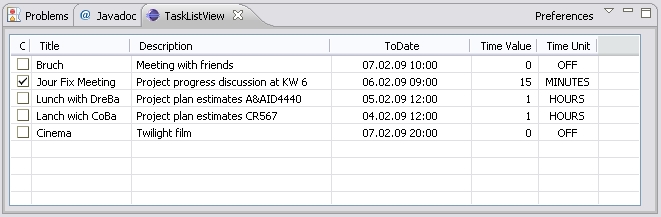
TaskListView with some entries loaded.
Note: The data are not stored locally. If you modify the login data and make them thereby invalid, the content does not disappear. But all future modifications will not be stored in the Google Calendar, hence they will are lost by the next time you update the view.
Add a new Task
With a right-click on the task list or with the pulldown menu on the view tool bar, you can select the 'Add Task' action. A dialog for task title, description and time will be shown. By pressing the 'OK' button, a new task is added to the list.
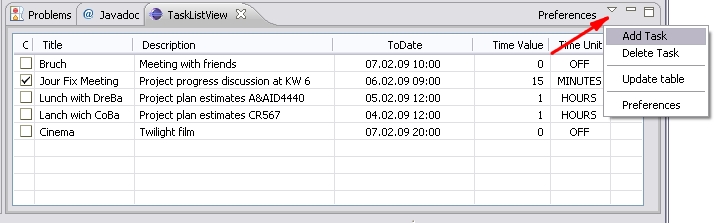
Add new task.
Delete Task
Select a row with the task, which is to be deleted. In context menu or pulldown menu select the 'Delete Task' action. The selected task will be removed from the task list in the view and also immediately deleted from Google Calendar.
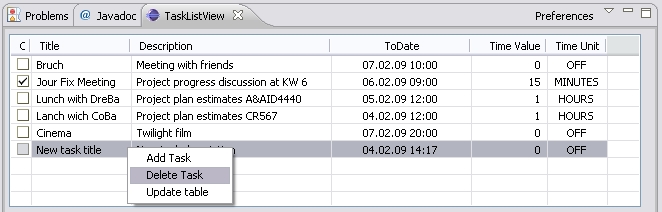
Delete selected task.
Edit Task
You can edit a task by clicking on the cell containing the corresponding data.
- Completed: defines whether the task already done or not. In the Google Calendar, completed tasks are marked with a "COMPLETED" prefix in the title.
- Title: the title of the task / event
- Description: the description of the task / event
- toDate: a day and time when the task dues / event occurs. The representation format depends on the current locale setting.
- time Value: number of time units specified in the next column, which is used for set the reminder notification via SMS
- time Unit: list of possible time units (minutes, hours or days), or OFF, if no reminder desired.
Update table
The task list is re-loaded from the Google Calendar using the 'Update Tasks' function. This function is useful to ensure the actual state of the saved events and to get the latest versions of taks that may have been concurrently changed by other users.