


ToDoRegister
Introduction
TaskListViewer is an Eclipse plugin for managing tasks that have to be finished at certain deadlines. It uses Google Calendar to store the task information and makes use of the Calendar's notification functionality.
The current implementation has the following functionality:
- Add new events to calendar
- Remove events from calendar
- Modify events in calendar
- Load existing events from calendar (Google Calendar)
- Edit and save access data (user name and password) of Goole Account
For using the Plugin you need to have a Google account. You can create one at https://www.google.com/accounts/NewAccount or use the test account for this project: user name: "se.praktikum@gmx.de", password: "software".
With the Google Account you have access to the Google Calendar which is used to store the TaskList events. Moreover Google Calendar provides a reminder service via SMS, E-Mail or Pop-up. The current TaskList implementation enables the SMS noification option. In the TaskList view the user can set the desired time period for SMS notification for his tasks. The cell phone number should be set in the Google Calendar settings (accessible via the Google Calendar web frontend http://www.google.com/calendar/).
To open the TaskList view, do following steps:
- Go to Window ⇒ Show View ⇒ Other... ⇒ TaskList Category ⇒ TaskListView.
- The TaskList View with some entries may look like this:
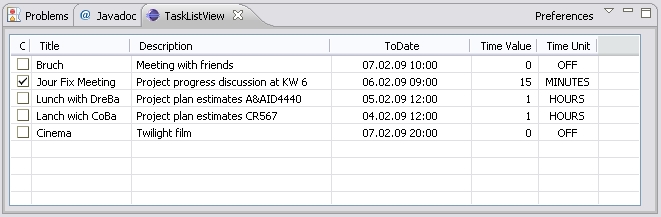
Each Task on the task list has the following properties with corresponding TableView columns:
- Completed is a flag for setting the task 'done'
- Title is the title of the task
- Description is the short description of the task
- toDate is the day and time when the event occurs / the task dues. The representation format depends on the current locale setting.
- time Value and time Unit are the properties for the reminder definition. If time Unit is set to OFF, no reminder is defined and no notification will occur. If time Unit is set to on of the other values, the user gets a reminder SMS given in the specified time before the event occurs (assuming the cell phone number is set in the Google Calendar settings).